How To Turn Off The Screen On Your Amazon Echo Show (3 Easy Ways)

Leah Mitchell
Updated on October 06, 2026
The Echo Show is a helpful tool for watching TV shows, updating shopping lists, and more. But what about those times where you want its screen off?
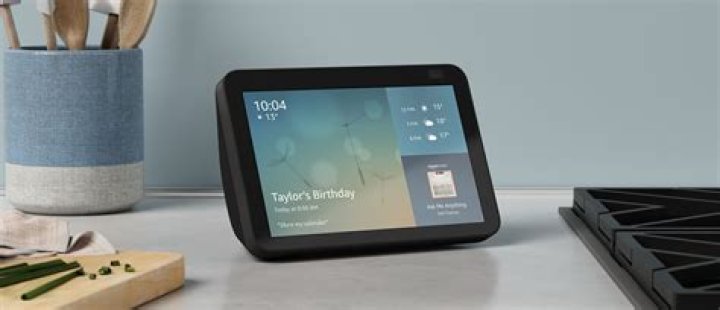
Amazon's Echo Show is one of the most helpful smart displays on the market, yet simple things — such as turning off the screen — can be a challenge if you don't know where to look. The rise of Alexa and the Echo brand has been fascinating to watch over the last few years. The original Echo was a relatively basic smart speaker that introduced the world to Alexa for the first time. Today, there are Echo gadgets of virtually every shape and size — all designed to get Alexa into people's homes no matter what their personal preference is.
One form factor where Alexa's really shined is with the Echo Show. This is Amazon's lineup of Alexa-powered smart displays. They support all the same voice commands as other Echo gadgets, but the inclusion of a screen gives them extra functionality. Ask Alexa about the weather, and the Echo Show shows users a visual forecast. Ask about upcoming calendar appointments, and Echo Shows can display these on their screens for everyone to see. It sounds like a small addition, but it takes the Alexa experience from good to great.
While all of that's true, one aspect of the Echo Show can be rather annoying at times. The screen is great when users want to see information about their day, but what about those times where they want the screen to shut off? While it's not immediately apparent, turning off the Echo Show's display is surprisingly easy. At any time, say 'Alexa, turn off the display,' and it'll shut off just like that. To get the screen back on, either touch it or say another Alexa command.
Other Ways To Turn Off Your Echo Show's Display
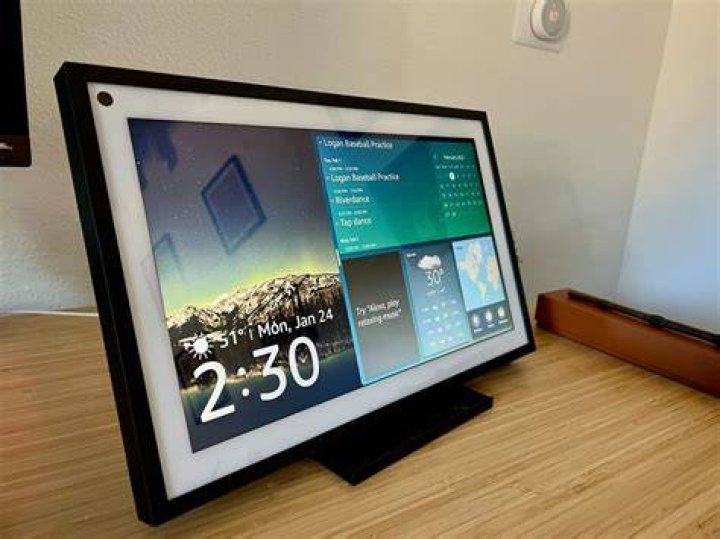
Another way to turn off the Echo Show's screen is with some of its automatic settings. From the Echo Show, swipe down from the top of the screen and tap 'Settings.' Tap 'Clock & Photo Display,' scroll to the bottom of the page, and make sure 'Auto Sleep' is enabled. When turned on, the Echo Show's screen automatically turns off after 10 minutes of inactivity. In other words, the screen will shut itself off on its own without you having to worry about it.
From that same 'Clock & Photo Display' page, tap 'Night Mode.' Ensure that 'Night Mode Behavior' is selected and then choose 'Scheduled' or 'Automatic.' This will automatically turn the display off during certain times of day, or based on the surrounding light (for example, turning off all the lights in a room will also cause the Echo Show's display to shut off). If 'Nighttime Clock' is selected, this will cause the Echo Show to display a dim clock instead of completely turning off the screen. If someone wants to get rid of that clock and have the display shut off completely, tap the toggle next to 'Nighttime Clock' so that it's no longer selected. Keep those tips in mind, and the Echo Show's screen should no longer be a nuisance.
Next: How To Factory Reset Amazon Echo Speakers & Displays
Source: Amazon